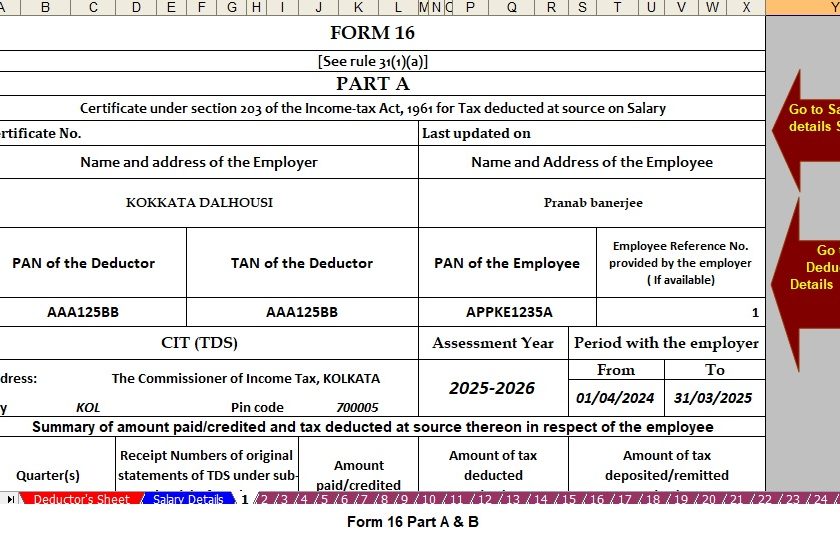
Tax season can feel like a mountain climb, right? Especially for HRS and accountants trying to handle multiple employees’ tax documents all at once. Imagine having to prepare Income Tax Form 16 Part B and Part A&B for not just one or two, but 50 employees — and that too efficiently in Excel. Sounds like a challenge? Well, not anymore. This guide is here to help you breeze through the process like a pro. Let’s simplify the seemingly complex into a few clear steps.
Table of Contents
| Sr# | Headings |
| 1 | What is Form 16? |
| 2 | Why Form 16 is Important for Employees |
| 3 | Difference Between Form 16 Part A and Part B |
| 4 | Requirements Before You Start |
| 5 | How to Download Form 16 Part A for Multiple Employees |
| 6 | Steps to Generate Form 16 Part B Using Excel |
| 7 | Combining Part A and Part B into a Single PDF |
| 8 | Using TRACES to Download Form 16 |
| 9 | Automating the Process for 50 Employees |
| 10 | Common Mistakes to Avoid |
| 11 | Tips to Ensure Accuracy in Excel Sheets |
| 12 | Best Tools and Software for the Job |
| 13 | Importance of Digital Signatures in Form 16 |
| 14 | Final Checklist Before Distribution |
| 15 | Conclusion and Takeaway |
1. What is Form 16?
Form 16 is a certificate issued by an employer to their employee. It details the income earned and the tax deducted at source (TDS) during a financial year. Think of it as a tax report card for salaried individuals.
2. Why Form 16 is Important for Employees
It’s more than just a document — it’s proof that tax has been deducted and paid to the government. Employees need Form 16 to:
- File their Income Tax Returns (ITR)
- Claim tax refunds
- Maintain personal financial records
3. Difference Between Form 16 Part A and Part B
- Part A: Generated from TRACES and contains employer and employee details along with TDS summary.
- Part B: Prepared by the employer and includes a detailed breakup of salary, deductions, and tax liability.
In simple terms, Part A tells who paid the tax and how much, while Part B explains how the tax was calculated.
4. Requirements Before You Start
Before diving into Excel, gather the essentials:
- TAN of the employer
- Employee PAN numbers
- TRACES login credentials
- Updated salary and deduction details
- Digital Signature (optional, but highly recommended)
5. How to Download Form 16 Part A for Multiple Employees
- Download from the link below
- Navigate to ‘Downloads’ > ‘Form 16’
- Enter employee PANS or upload a bulk request
- Submit and download the zip files once processed
💡 Tip: Use the bulk PAN request option to save time.
6. Steps to Generate Form 16 Part B Using Excel
Excel is your best friend here. Follow these steps:
- Open the Form 16 Part B template (provided by www.pranabbanerjee.com)
- Fill in employee-wise data: salary, allowances, deductions, tax computation
- Use Excel formulas to auto-calculate totals and taxes
- Save individual sheets or use macros to generate PDFS per employee
💡 Use VLOOKUP or XLOOKUP to fetch data from master sheets.
7. Combining Part A and Part B into a Single Excel File
Once you have both parts ready:
- Use PDF tools like Adobe Acrobat, PDFsam, or online mergers
- Match files by PAN or employee ID
- Merge and rename files as “Form16_fy2024-25_emp001.pdf” and so on
This makes distribution easy and professional.
8. Automating the Process for 50 Employees
Handling 50 records manually can be mind-numbing. Automation to the rescue!
- Use Excel VBA Macros to auto-fill, calculate, and export
- Consider TDS software like Cleartds, Saral TDS, or Webtel
- Batch merge and digitally sign documents using automation tools
Think of it as setting up a conveyor belt instead of doing it piece by piece.
9. Common Mistakes to Avoid
- Incorrect PAN or mismatch with TDS records
- Wrong deduction figures
- Missing HRA, LTA, or other exemptions
- Not validating before converting to PDF
Double-check. Then check again.
10. Tips to Ensure Accuracy in Excel Sheets
- Freeze headers and use filters
- Use conditional formatting to highlight errors
- Lock formulas to prevent accidental changes
- Always test with 2–3 employees’ data first
Accuracy in Excel is the backbone of this process.
11. Best Tools and Software for the Job
Here are some handy tools:
- Excel VBA for automation
- PDFsam for merging PDFS
- Cleartds for e-TDS filing and Form 16 generation
- Adobe Acrobat for digital signatures
- Google Sheets (for collaboration if needed)
Choose what fits your workflow best.
12. Importance of Digital Signatures in Form 16
In today’s digital world, a signature isn’t just a scribble. A Digital Signature Certificate (DSC) authenticates Form 16 and is recognised legally.
It saves time and builds trust with employees.
13. Final Checklist Before Distribution
✅ All PANs verified
✅ Salary & deductions correct
✅ Part A matched with Part B
✅ Merged PDFs tested
✅ Digital Signature applied
Now, you’re all set to distribute.
14. Conclusion and Takeaway
Preparing Income Tax Form 16 Part B and combining it with Part A for 50 employees might seem like a marathon. But with the right tools, a little Excel magic, and a clear process, it’s more like a well-oiled machine. Stick to the structure, double-check your data, and let automation do the heavy lifting. You’ve got this!
FAQs
1. Can I generate Form 16 Part B directly from TRACES?
No, Part B must be prepared by the employer, usually using Excel or payroll software.
2. What if an employee’s PAN is wrong in the TDS return?
You need to revise the TDS return with the correct PAN before generating Form 16.
3. Is Form 16 mandatory for all employees?
Only those whose TDS has been deducted will get Form 16. Others can refer to salary slips.
4. Can I use Google Sheets instead of Excel?
Yes, but features like macros or advanced formulas might be limited.
5. Is it okay to send Form 16 via email?
Yes, as long as the file is password-protected and preferably digitally signed.
Download and Prepare at a Time 50 Employees Form 16 Part B for Financial Year 2024-25 in Excel
[This Excel tool can prepare at a time 50 Employees Form 16 Part B]
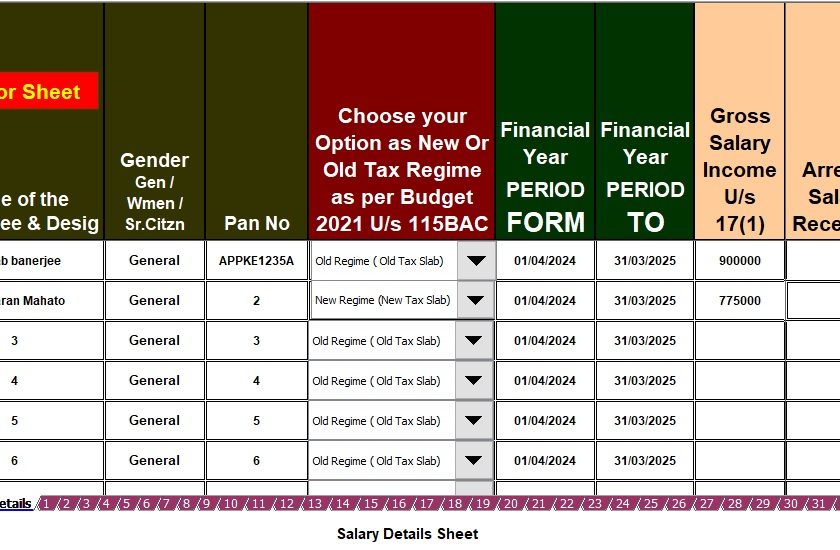
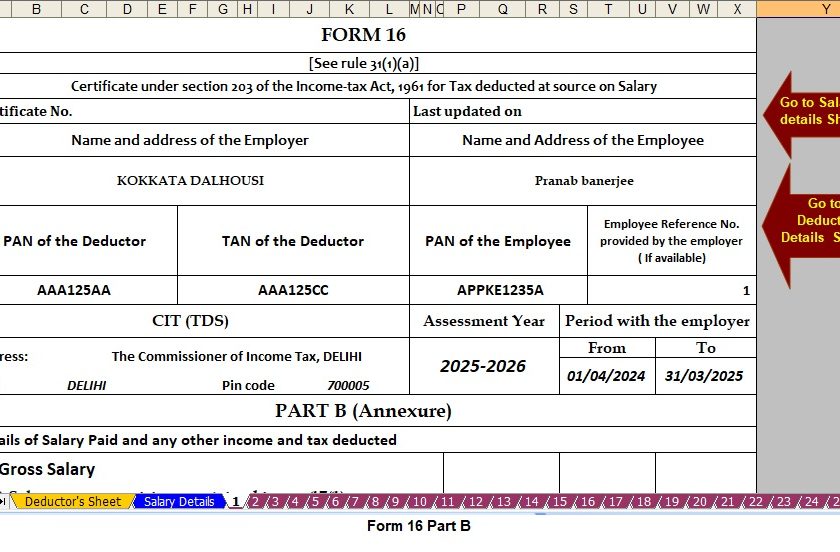
Download and Prepare at a Time 50 Employees Form 16 Part A&B for Financial Year 2024-25 in Excel
[This Excel tool can prepare at a time 50 Employees Form 16 Part A&B]