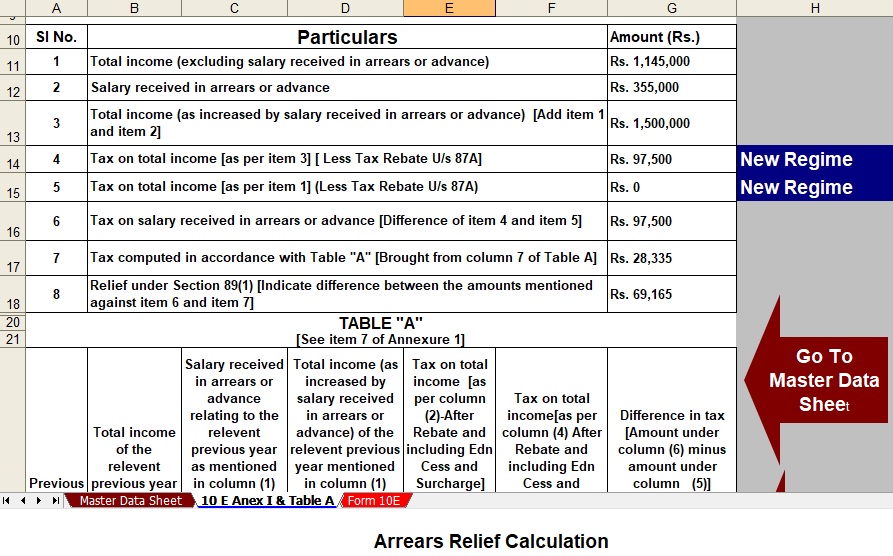
Every salaried employee occasionally faces a confusing tax situation. For instance, you may receive salary arrears, pension arrears, or advance salary in a particular financial year. As a result, your taxable income suddenly increases, and therefore, your tax liability may also rise. Fortunately, the Income Tax Act provides relief through Section 89(1). However, to claim this benefit, you must submit Form 10E before filing your income tax return.
Now the good news is that you no longer need to perform complicated calculations manually. Instead, you can use the Automatic Income Tax Form 10E in Excel FY 2025-26, which simplifies the entire process. In other words, this Excel utility works like a GPS for your tax calculations, guiding you step by step and ensuring that you never lose your way.
Table of Contents
| Sr# | Headings |
| 1 | Understanding Form 10E and Section 89(1) |
| 2 | Why Salary Arrears Increase Your Tax Burden |
| 3 | Importance of Filing Form 10E |
| 4 | What Is Automatic Income Tax Form 10E in Excel FY 2025-26 |
| 5 | Key Features of the Excel Utility |
| 6 | Benefits for Salaried Employees |
| 7 | Step-by-Step Guide to Use the Excel Tool |
| 8 | How the Calculator Determines Tax Relief |
| 9 | Documents Required Before Using the Tool |
| 10 | Common Mistakes While Filing Form 10E |
| 11 | Why Excel Automation Saves Time |
| 12 | Who Should Use This Tool |
| 13 | Tips for Accurate Tax Relief Calculation |
| 14 | Advantages Over Manual Calculations |
| 15 | Final Thoughts |
1. Understanding Form 10E and Section 89(1)
To begin with, we must clearly understand the basic idea behind Form 10E and Section 89(1). In simple terms, Section 89(1) of the Income Tax Act allows taxpayers to claim tax relief whenever they receive income related to earlier years during the current financial year. In many cases, employees receive such income as salary arrears, pension arrears, or advance salary.
For example, an organisation may revise employee salaries after a long delay. As a result, the employer releases arrears in the present year even though the income actually belongs to previous years. Consequently, the employee’s total income for the current financial year increases significantly.
Because of this sudden increase, the taxpayer may move into a higher tax bracket. Therefore, the tax liability may also rise unexpectedly. However, the government recognises this issue and therefore provides a fair solution through Section 89(1).
Accordingly, the law allows taxpayers to distribute that arrears income across the relevant previous years for tax calculation. In other words, the system recalculates the tax as if the income had been received in those earlier years. As a result, taxpayers avoid paying excessive tax in a single year. Ultimately, this provision ensures fairness and balance in the taxation system.
2. Why Salary Arrears Increase Your Tax Burden
From time to time, organisations revise salary structures due to promotions, pay commission updates, or administrative corrections. Consequently, employees receive arrears for earlier periods. Although receiving arrears often feels rewarding, it can also create unexpected tax complications.
For instance, suppose you receive ₹1,00,000 as salary arrears in a single financial year. Immediately, your total taxable income increases. Subsequently, you may fall into a higher tax slab. As a result, you may end up paying more tax than you actually should.
Nevertheless, the Income Tax Act offers a fair remedy. By using Form 10E, you can calculate your tax liability as though the arrears were received in the years to which they actually belong. Thus, the system spreads the income across those relevant years.
Therefore, instead of paying a large tax amount in one year, you pay the correct and reasonable tax amount. In short, Form 10E restores tax fairness for employees receiving arrears.
3. Importance of Filing Form 10E
Many taxpayers remain unaware of an important rule related to arrears relief. Before claiming relief under Section 89(1), taxpayers must submit Form 10E online through the Income Tax portal.
If taxpayers skip this step, the Income Tax Department may reject their relief claim. Consequently, the department may issue notices or raise additional tax demands. Naturally, such situations create unnecessary stress for taxpayers.
Therefore, filing Form 10E is not merely recommended; rather, it is mandatory. Moreover, taxpayers must complete the form before filing their Income Tax Return (ITR).
Fortunately, the Automatic Income Tax Form 10E in Excel FY 2025-26 simplifies this entire process. Specifically, the Excel tool prepares accurate data and calculations beforehand. As a result, taxpayers can confidently submit the required details online without confusion.
4. What is the Automatic Income Tax Form 10E in Excel FY 2025-26
The Automatic Income Tax Form 10E in Excel FY 2025-26 works as an intelligent Excel-based calculator designed specifically for arrears relief calculations. Instead of relying on complicated manual formulas, this Excel utility performs calculations automatically.
Once users enter salary details, arrears amounts, and financial year information, the spreadsheet immediately processes the required calculations. Furthermore, the tool organises salary arrears year-wise and compares the tax liability across multiple financial years.
Additionally, the Excel utility prepares structured data that users can easily use while filing Form 10E online. Consequently, the process becomes faster, clearer, and more reliable.
Ultimately, this automated tool transforms a complicated tax calculation into a simple and user-friendly process.
5. Key Features of the Excel Utility
The Excel utility includes several useful features that make tax relief calculation much easier.
Automatic Calculations:
Once users enter income and arrears details, the spreadsheet instantly calculates the tax relief amount.
User-Friendly Interface:
Even beginners can operate the tool easily because the layout remains simple and well organised.
Accurate Built-in Formulas:
The Excel sheet uses predefined formulas. Therefore, it significantly reduces the possibility of calculation errors.
Year-wise Tax Comparison:
The tool compares tax liability across different financial years, which helps determine the exact relief amount.
Instant Data Updates:
Whenever users modify any value, the results update immediately. Consequently, users receive accurate calculations within seconds.
Overall, these features make the tool highly efficient and reliable.
6. Benefits for Salaried Employees
Salaried individuals often face difficulty when they calculate arrears relief manually. However, this Excel utility removes most of those challenges.
Firstly, it simplifies complex tax calculations. Secondly, it saves a considerable amount of time. Moreover, it eliminates the need to apply complicated formulas manually.
Additionally, the tool improves calculation accuracy and ensures proper tax relief estimation. Consequently, employees can submit Form 10E without worrying about mistakes.
Most importantly, the Excel utility ensures that taxpayers claim the maximum eligible relief permitted under the Income Tax Act.
7. Step-by-Step Guide to Use the Excel Tool
Using the Automatic Income Tax Form 10E in Excel FY 2025-26 is straightforward and convenient.
Step 1: Download the Excel utility from the provided link.
Step 2: Enter your personal details along with the relevant financial year information.
Step 3: Input the amount of salary arrears or advance salary received.
Step 4: Provide income details for the corresponding previous years.
Step 5: Review the automatically calculated tax relief amount.
Finally, you can use these calculated figures when you submit Form 10E on the Income Tax e-filing portal.
8. How the Calculator Determines Tax Relief
The Excel calculator follows a logical and systematic process.
First, it calculates the total tax payable, including arrears income. Next, it calculates the tax payable without considering arrears.
Afterwards, the tool distributes the arrears income across the respective previous financial years. Subsequently, it recalculates the tax liability for those years.
Finally, it compares both results and determines the difference. This difference represents the relief amount under Section 89(1).
Therefore, the calculator ensures accuracy and full compliance with tax regulations.
9. Documents Required Before Using the Tool
Before using the Excel utility, you should keep a few essential documents ready. These documents help you enter accurate information into the spreadsheet.
Important documents include:
- Salary slips
- Form 16 from previous years
- Arrears statement provided by the employer
- Previous tax computation records
Once you collect these documents, you can easily input the required details and complete the calculation process smoothly.
10. Common Mistakes While Filing Form 10E
Taxpayers often make several avoidable mistakes while filing Form 10E.
For instance, some individuals forget to submit Form 10E before filing their Income Tax Return. Meanwhile, others enter incorrect income details.
Similarly, some taxpayers ignore previous year income figures. Consequently, they calculate the wrong relief amount.
However, automated Excel utilities greatly reduce such mistakes because they perform calculations systematically and accurately.
Why Excel Automation Saves Time
Manual tax calculations can take hours, especially when you calculate tax for multiple financial years.
However, Excel automation works like a high-speed financial calculator. Once you enter the numbers, the spreadsheet performs hundreds of calculations instantly.
Therefore, a task that previously required hours can now be completed within minutes.
Who Should Use This Tool
Several groups of taxpayers can benefit from this Excel utility.
These include:
- Government employees receiving pay commission arrears
- Private sector employees receiving salary revisions
- Pensioners receiving pension arrears
- Chartered accountants and tax professionals assisting clients
In short, anyone who receives arrears income can use this tool effectively.
Tips for Accurate Tax Relief Calculation
To ensure precise results, you should follow a few important tips.
Firstly, always verify income details using official documents. Secondly, enter the correct financial year information carefully.
Additionally, check the arrears distribution across different years. Finally, review the calculated relief amount before submitting the form.
By following these steps, you can avoid costly calculation errors.
Advantages Over Manual Calculations
Manual tax computations often involve lengthy formulas and complex steps. Consequently, errors can easily occur.
In contrast, automated Excel tools simplify the entire process. Furthermore, they provide instant results and well-organised calculations.
As a result, even individuals with limited tax knowledge can easily calculate arrears relief.
Final Thoughts
In today’s fast-paced financial environment, efficiency plays a crucial role. Instead of struggling with complicated tax formulas, taxpayers should rely on smart digital tools.
The Automatic Income Tax Form 10E in Excel FY 2025-26 provides exactly such a solution. It simplifies arrears relief calculations, improves accuracy, and saves valuable time.
Moreover, it helps taxpayers comply with Section 89(1) requirements without confusion. Therefore, if you want a smooth and stress-free tax filing experience, downloading this Excel utility can be a wise financial decision.
FAQs
- What is Form 10E used for?
Taxpayers use Form 10E to claim tax relief under Section 89(1) when they receive salary arrears, advance salary, or pension arrears. - Is submitting Form 10E mandatory before claiming relief?
Yes, taxpayers must submit Form 10E online before claiming relief under Section 89(1). - Who should use the Automatic Income Tax Form 10E in Excel FY 2025-26?
Salaried employees, pensioners, government staff, and tax professionals can use this Excel tool for quick arrears relief calculations. - Does the Excel utility calculate tax relief automatically?
Yes, the Excel tool automatically compares tax liabilities across financial years and calculates the relief amount. - Can I file Form 10E directly from Excel?
No. The Excel utility helps you prepare calculations, but you must submit Form 10E online through the Income Tax e-filing portal.
Free Download Automatic Income Tax Form 10E U/s 89(1) in Excel for the FY 2025-26